Make Your Links Move
Play Open Graph loops from Figma, Lovable, Square and AirBuild, then build and test an animated link preview of your own.
Make one part of the card worth watching. Let color flow behind a wordmark, turn a pile of designs into a reel, or show one action inside your product. Each of these four share images gives motion a different job. Play them, then choose a move that fits your own link.
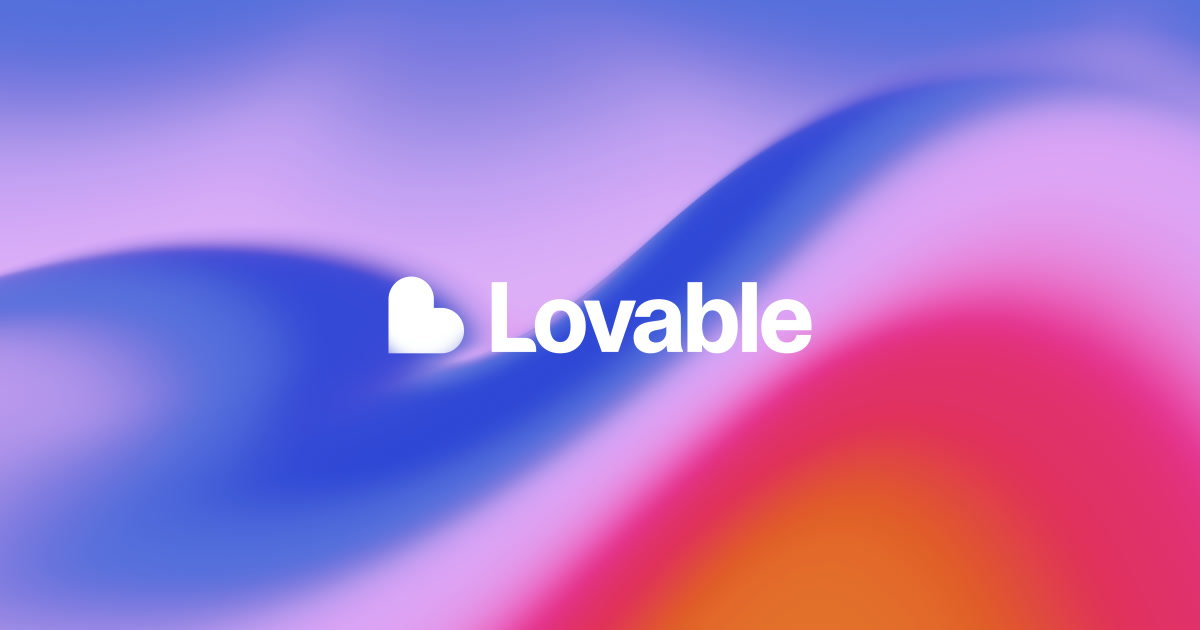
Lovable gives the background the motion
Lovable keeps its white heart and wordmark centered while blue, pink and orange flow behind them. The colors change the mood with each frame, and the name stays readable. Try this when the identity already tells the story. Hold the mark in one place and animate the color or texture around it.
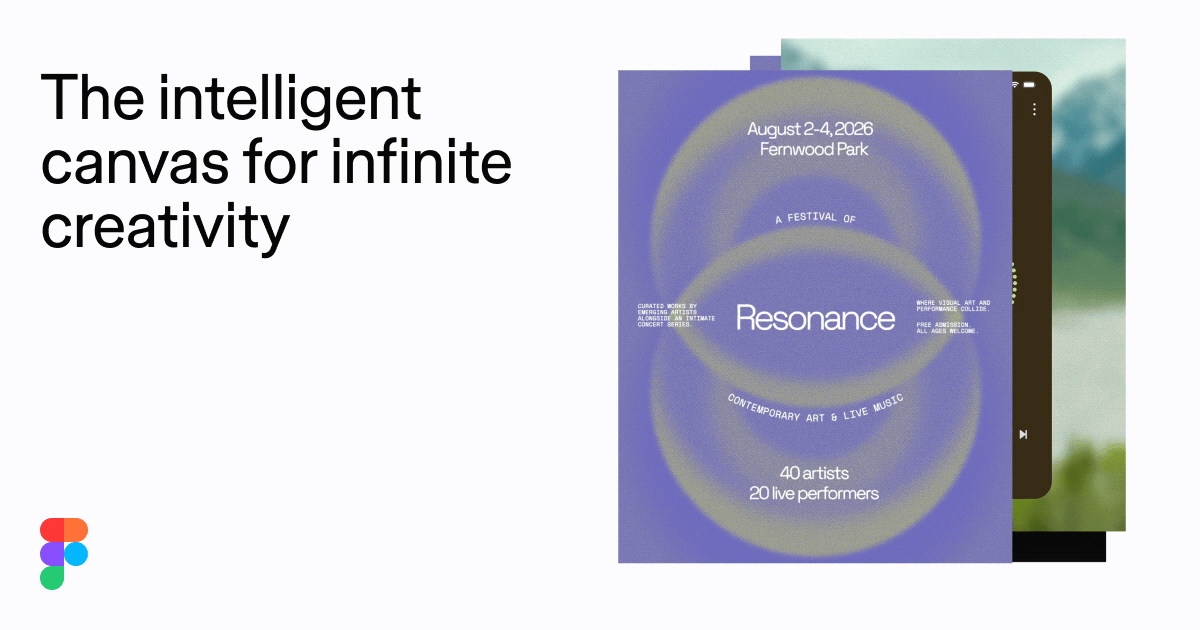
Figma turns one card into a portfolio
Figma keeps its headline and logo on the left while a stack of designs cycles on the right. A purple festival poster gives way to an illustration, an editor and several interfaces. Try the same split when you have a range of work to show. Put the promise in a fixed area and give each example the same stage.
Two more moves to borrow
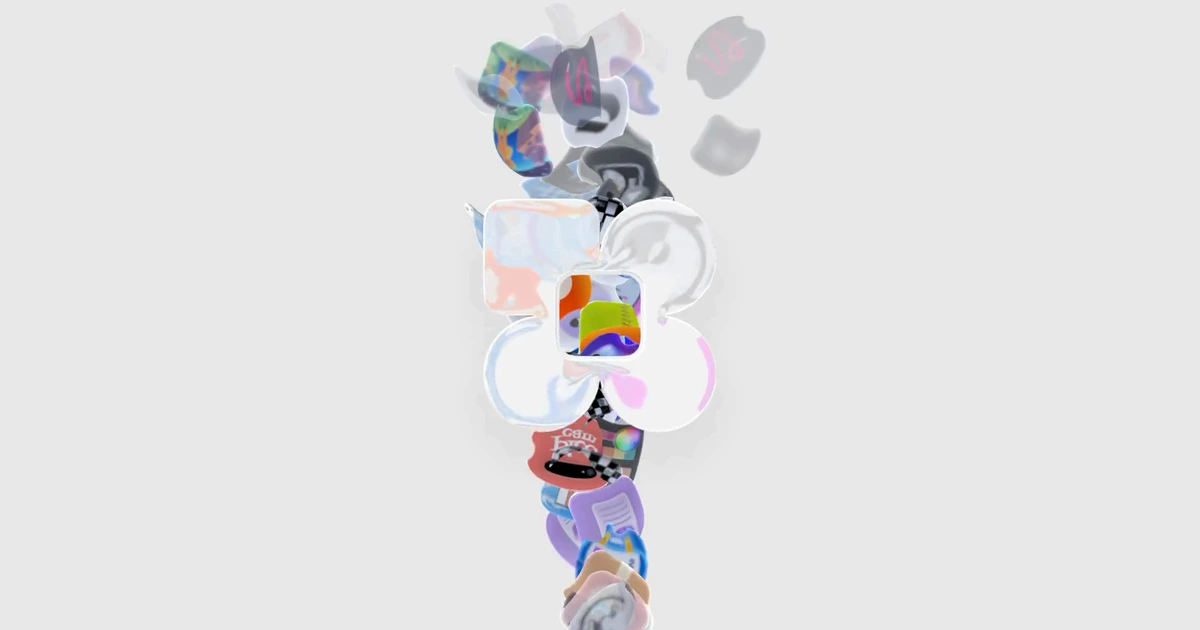
AirBuild holds the center
A column of objects moves behind a stationary white symbol. The eye always has a place to land, even as the details change. For an abstract loop, choose one recognizable shape and give the surrounding elements a simple path.
Square Kiosk uses a reveal
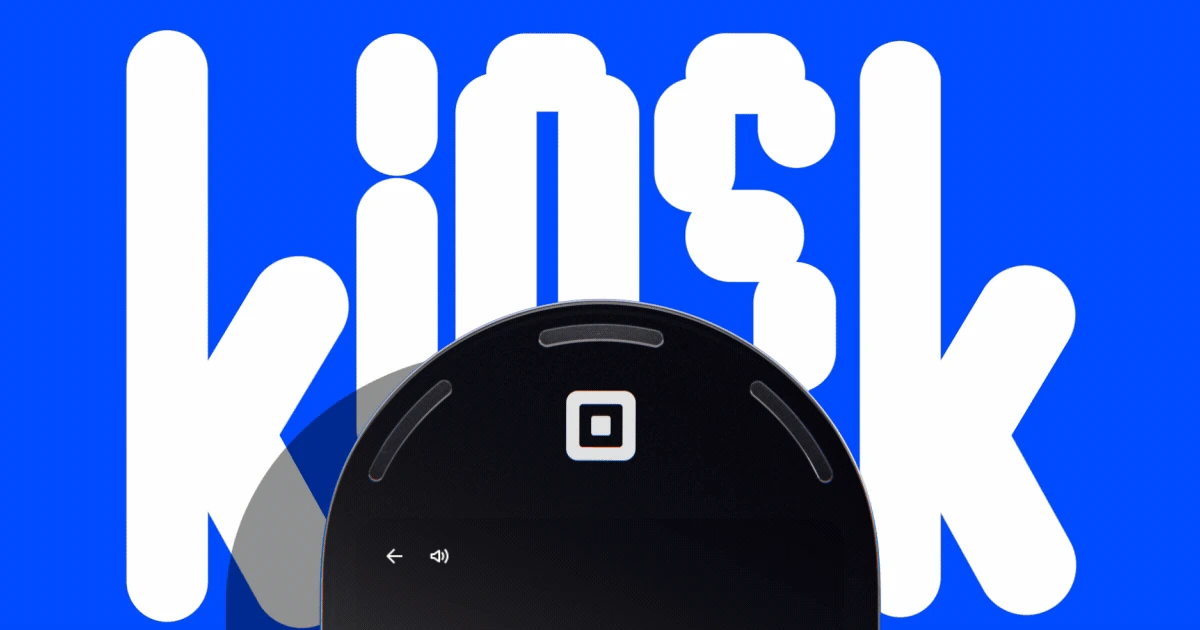
Oversized Kiosk lettering and the device fill the blue frame. The view pulls back to reveal the order screen alongside food, offers and loyalty details. The loop opens on solid blue, so the gallery still uses the moment when the device and name are both visible. Choose a still like that when your motion starts with a reveal.
Build the still, then add one move
- Compose the still. Start on a 1200 × 630 canvas and shrink the design to thumbnail size. The name and main visual should read in one glance. Leave room for a tighter crop. Check the Open Graph image safe area.
- Storyboard one change. Keep one visual anchor fixed. Sketch the first, middle and last frames, then check the jump back to the beginning.
- Publish the image and the motion. Set
og:imageto a still for a static card or to a GIF with a readable first frame to offer motion through the image tag. Add a direct MP4 inog:videowhere it makes sense for the destination. An app can show a single frame, animate the GIF, or play the MP4, depending on how it handles the metadata. Open Graph image and video properties.
This guide uses an animated GIF as its share image and also offers an MP4. Use your own public HTTPS assets and set the dimensions to match each file.
<meta property="og:image" content="https://example.com/og.gif">
<meta property="og:image:type" content="image/gif">
<meta property="og:image:width" content="1200">
<meta property="og:image:height" content="630">
<meta property="og:image:alt" content="White Motion Notes title on purple">
<meta property="og:video" content="https://example.com/og.mp4">
<meta property="og:video:type" content="video/mp4">
<meta property="og:video:width" content="1200">
<meta property="og:video:height" content="630">Test the link where people will share it
For inline video in Apple Messages, point og:video or twitter:player:stream directly to the media file. Apple documents automatic playback for compatible video the app can download, and tap-to-play for streaming sources such as HLS. Slack’s classic link preview reads page metadata. Slack apps can also customize previews for registered domains. Apple’s Messages preview guidance · Slack’s classic link unfurls.

Paste the public page URL into the composer or chat your audience uses. Check what reads on a phone, which frame appears, and whether playback needs a tap. Put essential copy in the page metadata so it stays available when the image is small. If an update looks unchanged, check what the platform cached. Apple’s recommendations for images and titles · LinkedIn’s preview refresh instructions.
Compare two exports before you pick one
Start with an opaque GIF. This FFmpeg example makes a silent H.264 candidate, pads odd edges, and puts the MP4 index at the front for progressive playback.
ffmpeg -i loop.gif -an -c:v libx264 -crf 20 -pix_fmt yuv420p \
  -vf 'pad=ceil(iw/2)*2:ceil(ih/2)*2' -fps_mode vfr \
  -movflags +faststart loop.mp4
wc -c loop.gif loop.mp4Start at CRF 20 and raise it in steps of two. Compare each export at preview size and keep the smallest file that preserves legible type and a clean loop.